
Interactive Display vs. TV: Which Is Right for Your Meeting Room?
Do you need a touchscreen in your meeting room, or will a TV do? Compare real meeting tasks, software and equipment requirements, and complete setup costs before choosing a TIBURN interactive display.

Your meeting room already has a large screen. It shows slides, connects to a laptop, and lets everyone see the remote team. So what would an interactive touchscreen display actually change?
The answer depends on what happens after the presentation starts. If one person presents while everyone else watches and asks questions, a well-configured TV may do the job. If people regularly walk through processes, sketch alternatives, or mark up shared material, direct touch and whiteboarding deserve a closer look.
The interactive display vs. TV decision comes down to how people contribute. This guide compares a standard non-touch TV connected to a laptop or room computer with a touch-enabled interactive display configured for meetings. Either setup can support presentations and video calls with the right equipment. The difference is where and how people work with the content.
Interactive Display vs. TV: The Practical Differences
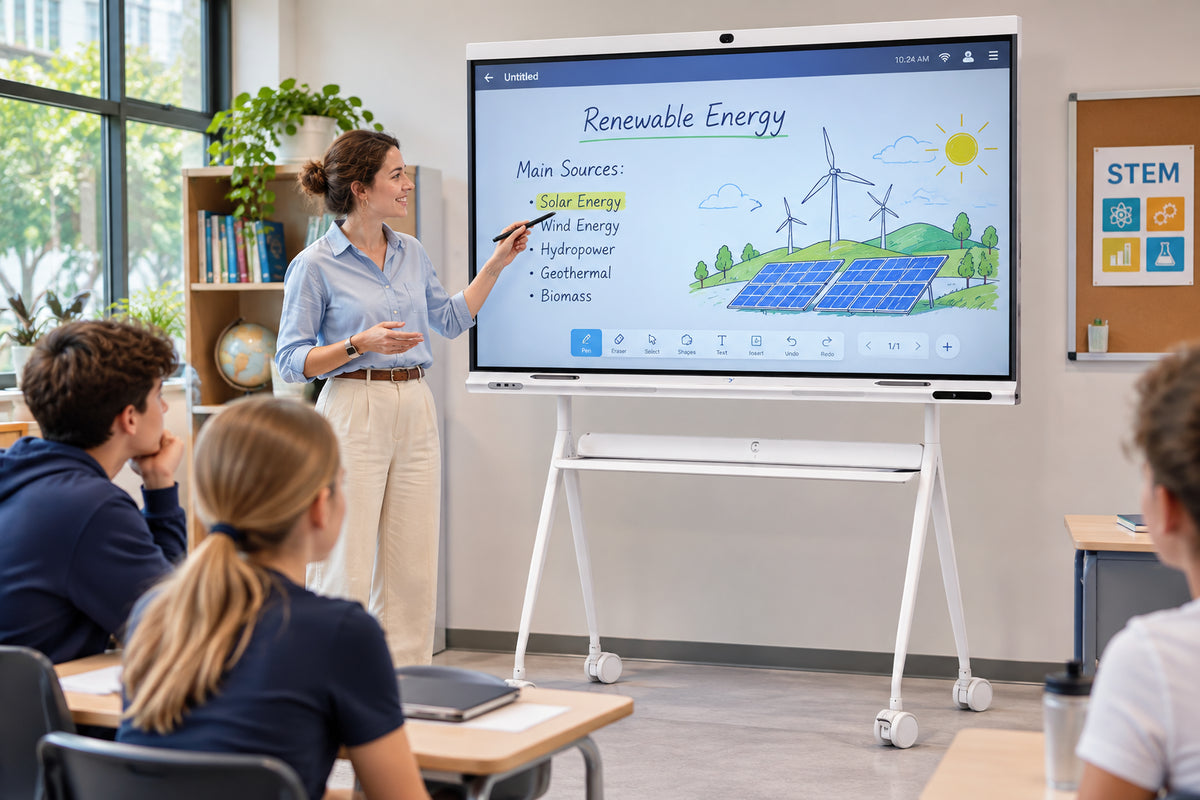
A TV provides a shared view of material controlled elsewhere, such as on a connected laptop. An interactive display adds input at the screen. Supported software can turn that surface into a place to write, draw, select, and annotate.
That distinction matters more than a generic list of apps. A TV can show a digital whiteboard running on a computer. Participants can contribute through that software using compatible devices. What a standard non-touch TV does not provide is touch input directly on its own panel.
| Meeting task | Standard non-touch TV with a connected computer | Interactive display with suitable software |
|---|---|---|
| Present slides, documents, and video | Displays the connected computer's content. | Displays content, with touch interaction where supported. |
| Draw a process or explain an idea | Use the computer, a pen tablet, or a separate whiteboard. | Write or draw directly on the screen in a supported whiteboard app. |
| Annotate a document | Use annotation software and an input device connected to the computer. | Use supported on-screen annotation; check whether marks are saved separately or into a file. |
| Share a laptop screen | Use a compatible wired connection or wireless sharing system. | Use supported wired or wireless sharing; confirm device and network compatibility. |
| Run a video meeting | Use a suitable computer, camera, microphone, speakers, and meeting platform. | Use the supported app or connected computer, with compatible audio and video equipment. |
| Let remote attendees edit together | Depends on the collaboration software and account permissions. | Also depends on the collaboration software and permissions; touch alone does not provide remote co-editing. |
| Save and distribute notes | Depends on the app and the chosen capture method. | Depends on the whiteboard or annotation app's save and export functions. |
Compare the complete setups you would actually buy. A TV paired with a capable room computer and conferencing equipment is a different proposition from a TV connected only to a basic streaming device.
When a TV Is Enough for a Meeting Room
A TV-based setup can be a sensible choice when the screen's main purpose is to give everyone a clear view.
Consider a weekly update meeting. The presenter opens a slide deck, reviews a dashboard, and answers questions while a colleague records actions on a laptop. If people rarely need to write at the screen, adding touch may change very little about that routine.
A TV is also worth considering when your team already has an effective collaboration setup. A shared whiteboard app on laptops may be enough for a distributed team, especially if participants prefer typing or using their own input devices.
Before keeping or buying the TV, check the essentials: can people read real documents from their usual seats, connect the intended devices, hear remote colleagues, and change presenters without confusion? Confirm that the display's intended use, mounting requirements, and warranty terms suit the room.
A useful TV setup already meets the need when everyone can see the material and the team is comfortable controlling it from another device.
When an Interactive Display Earns Its Place
An interactive display becomes more relevant when the group needs to develop the material during the meeting. The strongest use cases are activities people repeat, rather than features they try once during a demonstration.
Workshops that develop an idea in front of the group
Imagine an operations team mapping an approval process. People identify the steps, question a handoff, and suggest a simpler sequence. A supported whiteboard app lets a facilitator develop that diagram at the screen as the conversation unfolds.
The practical benefit is the connection between the person explaining the process and the material everyone sees. Test whether writing, selecting, and correcting the diagram feel comfortable enough for everyday use.
Reviews that depend on pointing to a specific detail
A proposal, layout, or training document often prompts questions about individual details. Supported annotation tools give the presenter a way to mark the issue while explaining it.
Ask what happens to those marks afterward. An annotation layer or exported image is different from editing the original document. If the team needs a revised PowerPoint, spreadsheet, or PDF, demonstrate that exact workflow before treating it as a requirement the board fulfills.
Training that benefits from a developing explanation
Some explanations work well when the instructor can build them step by step. A process can grow from a few labeled stages into a complete diagram, with questions added as participants identify gaps.
An interactive screen supports that style of instruction. Its value depends on whether trainers use those tools and whether the room gives them enough space to write while keeping the material visible.
In each case, the buying question is specific: which recurring activity becomes easier to lead when the presenter can work directly at the screen?
Screen Sharing, Touch Control, and Video Calls Are Different Jobs
Meeting-room comparisons often combine several capabilities under the word “collaboration.” Separate them during a demonstration so you know what the proposed setup actually does.
Sharing content does not automatically provide control
Screen sharing puts content from one device onto another display. Touch control adds a way to interact with the source or application, where supported. Seeing your laptop on a board does not establish that touching the board will control the laptop.
Test the intended connection, operating system, cables, and applications together. Ask the supplier to identify any additional connection or software needed for touch control. Treat the shape of a USB-C port as a starting point for questions about its supported functions.
A local whiteboard is different from a shared online session
Writing on a board in the room does not automatically make those strokes visible to a remote attendee. The meeting platform needs a way to share that content. If remote participants must also write, the collaboration app and account permissions need to support that interaction.
Test both directions: have someone in the room write, then ask the remote participant to contribute. Confirm what each person sees and which controls they can use.
Video quality depends on the room and the full setup
Both display approaches need a workable path for the meeting software, camera, microphone, and speakers. Some equipment may be integrated; other parts may be separate.
Use the actual meeting platform to check voices from normal seating positions, camera coverage, and content sharing. A high-resolution display alone does not establish the resolution of the call or the quality of room audio. For the wider equipment decision, see TIBURN's conference room buying guide.
Compare Total Cost Using the Same Requirements
The price on the screen's product page is only one part of a usable meeting room. Write a common list of required activities, then request an itemized quote for each approach.
| Cost category | What to compare in both quotes |
|---|---|
| Display | Exact model, size, resolution, supported use, and warranty terms. |
| Computing | Existing laptop, dedicated room computer, or integrated computing; include any required Windows configuration. |
| Audio and video | Camera, microphones, speakers, and any additional equipment the room needs. |
| Installation | Compatible mount or stand, delivery, installation labor, cable routing, and required site work. |
| Connections | Cables, adapters, sharing hardware, and network configuration. |
| Software | Whiteboarding, annotation, meeting accounts, paid features, and licenses where required. |
| Ongoing support | Training, IT administration, software maintenance, and warranty handling. |
Mark each item as already available, included, or additional. This avoids charging an option for equipment your organization already owns, or overlooking a component needed to make it work.
A TV-based setup may cost less when the room already has suitable equipment and needs little direct interaction. An interactive display may justify an additional investment when its tools support frequent workshops, reviews, or training. Integration can reduce the number of separate devices in some configurations, but the quote should show which components are actually included.
For more detail on purchase planning, see TIBURN's interactive whiteboard price guide. Request a current quote for the specific configuration; historical prices should not replace that quote.
Where TIBURN Fits in the Decision
TIBURN's “Share Your Thinking” message connects naturally with meetings where people explain, question, and develop ideas together. Once direct interaction is part of your requirements, choose the display around the work and the room.
The TIBURN Inspur Board 65-inch is listed as a 65-inch 4K interactive display with whiteboarding, presentation, and wired and wireless sharing. Its product page lists an included wall mount and asks buyers to confirm mobile stand availability. Evaluate it with your actual files, writing position, and seating layout.
The TIBURN HQ Board 75-inch R3 provides a 75-inch 4K format for meetings, training, and shared annotation. Its page lists HQ Eyes S2 camera and microphone support, plus wall-mount and mobile-stand deployment options. Confirm the contents of the selected package and test the intended meeting workflow.
These models are separate configurations. The base Inspur Board 65-inch should not be assumed to include the Windows configuration of the 65-inch Ultra. Likewise, the HQ Board 75-inch R3 and R3 MAX need separate checks. Ask for the complete hardware, software, and accessory list in writing.
A larger diagonal also does not answer every room question. Check text readability, screen height, glare, access to the writing surface, and clearance around any stand before deciding.
Test Both Options with One Real Meeting
Bring a work document and run a short version of an activity your team repeats. Use the same material to evaluate both proposed setups.
- Connect the usual laptop. Include a guest device if visitors present in the room.
- Read the material from the furthest seat. Use real text and charts instead of a promotional video.
- Explain and revise one idea. Try the input method the team would use: laptop controls, a pen tablet, or direct touch.
- Invite a remote colleague. Check audio, camera coverage, and how the shared material reaches them.
- Capture the outcome. Save or export the notes using the proposed app, then open the result on another device.
- Hand over to another presenter. Check the steps required to change users and end the session appropriately.
Let a regular presenter operate the setup as well as the person demonstrating it. Their experience is more useful than a feature count when deciding what the room needs.
Frequently Asked Questions
Can I use a normal TV for conference calls?
Yes. A compatible TV can display a call running on a connected laptop or room computer. The complete setup still needs suitable meeting software, camera, microphone, and speakers. Check each component and the intended connections.
Can a TV show a digital whiteboard?
Yes. It can show a whiteboard app running on a connected computer. People can interact through supported input devices or their own devices if the software allows it. A standard non-touch TV does not provide direct touch input on its panel.
Does an interactive display let me edit PowerPoint and Excel?
That depends on the software, licenses, computing environment, and input support. Drawing over a displayed slide or spreadsheet is different from changing the original file. Ask for a demonstration using your documents and required applications.
Does a 4K interactive display guarantee better video calls?
No. Display resolution is separate from the call's video quality. Camera capability, meeting settings, bandwidth, audio equipment, and room conditions all affect the experience. Test the complete setup with a remote participant.
Is a 65-inch or 75-inch screen better for my meeting room?
Compare both using your actual material and room layout. Check readability from the furthest seat, writing height, available installation space, and glare. A fixed attendee count cannot establish the right size for every room.
Is an interactive display worth the extra cost?
It deserves consideration when direct writing, annotation, and visual workshops are frequent parts of the team's work. If the room mainly shows content controlled from a laptop, a TV may meet the need. Compare complete quotes and test the recurring activities before purchasing.
Choose a Screen for the Way Your Team Meets
The right meeting-room display supports the work people need to do. Use the interactive display vs. TV comparison to identify where direct input would matter, then test that activity with your team.
If whiteboarding, shared annotation, and visual explanation belong in your regular meetings, contact TIBURN to discuss a suitable configuration. Share your room layout, intended applications, required devices, quantity, and delivery ZIP code. Ask for an itemized quote and a demonstration built around your actual work.
Share Your Thinking. Give the discussion a place to develop.
Join the conversation