65-Inch Interactive Whiteboard: Is Windows Worth the Upgrade?
Should your 65-inch whiteboard include Windows? Explore the TIBURN Inspur Board 65-inch Ultra's Mini PC configuration, Android tools, source switching, annotation, connections, and installation requirements before choosing your setup.
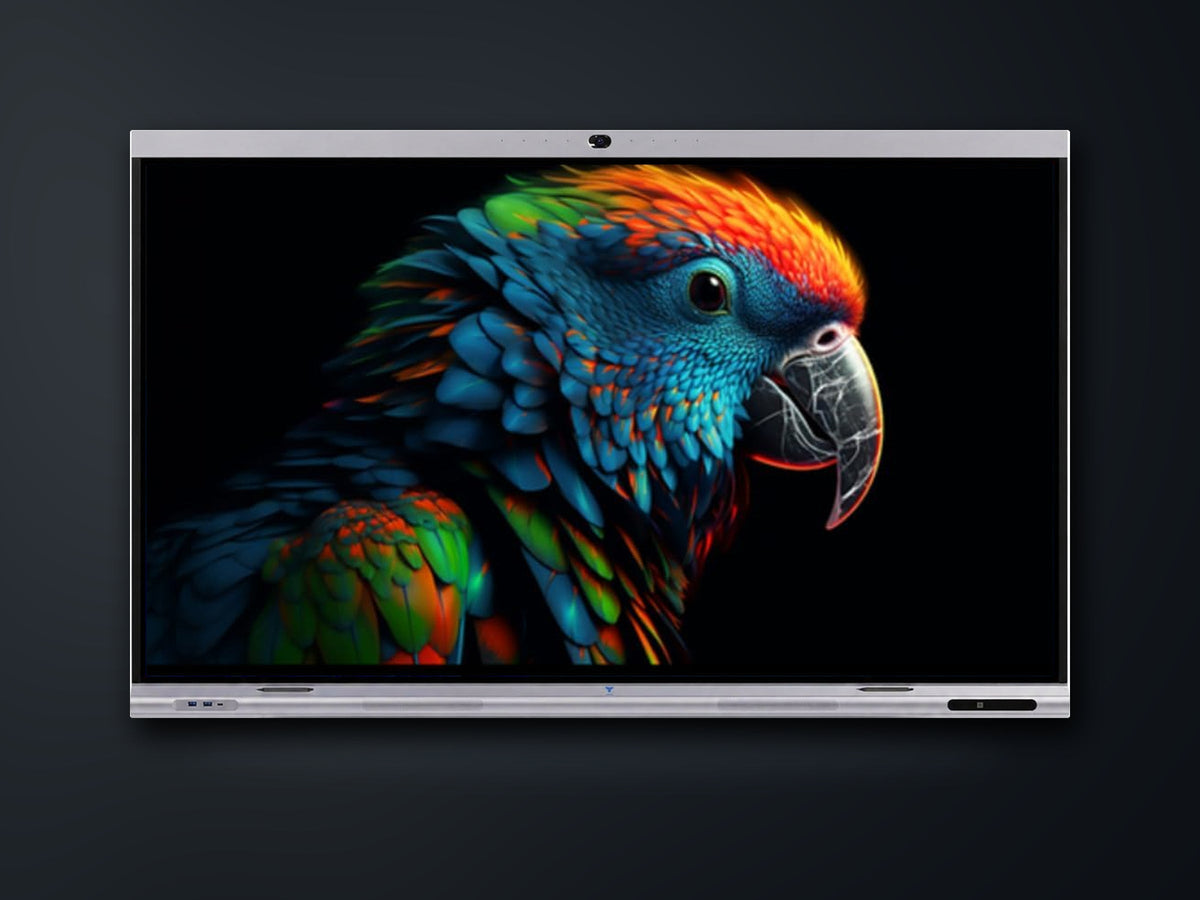
A 65-inch interactive whiteboard can put a presentation, a working diagram, and a group discussion on the same screen. But the operating system determines what happens when someone needs to open a desktop application or work with a familiar Windows file.
That is the practical reason to look at the TIBURN Inspur Board 65-inch Ultra. It combines a 65-inch 4K touch display with Android 13 and a supplied Windows 11 Pro Mini PC. The upgrade gives you a Windows computing environment alongside the board's Android workflow, rather than leaving every desktop task to a presenter's laptop.
This guide examines the Ultra's listed hardware, whiteboard tools, screen sharing, connections, and installation requirements. It also explains the difference from the Android-only Inspur Board 65-inch, so you can choose the configuration around your actual meetings, training, or lessons.
What Comes with the TIBURN Inspur Board 65-inch Ultra?
The 65-inch Ultra product listing describes a package containing the Smart Board, Mini PC, wall mounting equipment, remote, whiteboard pens, and cables. Its Mini PC description lists an Intel i5-1250PE processor, 16GB DDR4 memory, a 256GB SSD, and Windows 11 Pro. The board also provides an Android 13 environment.
These details matter because “dual system” alone does not tell a buyer what computer is included. When requesting a quote, identify the Inspur Board 65-inch Ultra and have the Mini PC configuration included as a separate line item.
| Component | What TIBURN currently lists for the 65-inch Ultra | What it means for your purchase |
|---|---|---|
| Display | 65-inch 4K UHD touchscreen | A shared surface for documents, whiteboarding, and presentations. |
| Operating environments | Android 13 and Windows 11 Pro | Choose the environment that supports the task and application. |
| Supplied Mini PC | Intel i5-1250PE | A Windows computer is part of the described Ultra package. |
| Mini PC memory | 16GB DDR4 | This figure belongs to the listed Mini PC configuration. |
| Mini PC storage | 256GB SSD | Plan capacity around installed software, updates, and working files. |
| Touch | 20-point multi-touch | Touch-point capacity is separate from an app's simultaneous-user support. |
| Meeting equipment | Camera, microphone, and built-in speakers | Check audio and video access in your chosen meeting environment. |
| Installation | Wall-mount support; 400 × 400mm VESA pattern listed | The mount and installation must suit the device and supporting surface. |
The website's general specification block also shows 8GB memory and 128GB storage without clearly assigning those figures to an operating environment. They should not replace the separate 16GB/256GB Mini PC description or be added to it. Ask TIBURN to confirm the Android and Windows specifications individually on the order.
Android or Windows: Which 65-inch Configuration Do You Need?
The base Inspur Board 65-inch is listed with Android 13. The Ultra is the configuration described with Android 13 plus the Windows 11 Pro Mini PC. Choose between them by looking at where your team will run its applications.
Use Android for the board's whiteboarding and supported apps
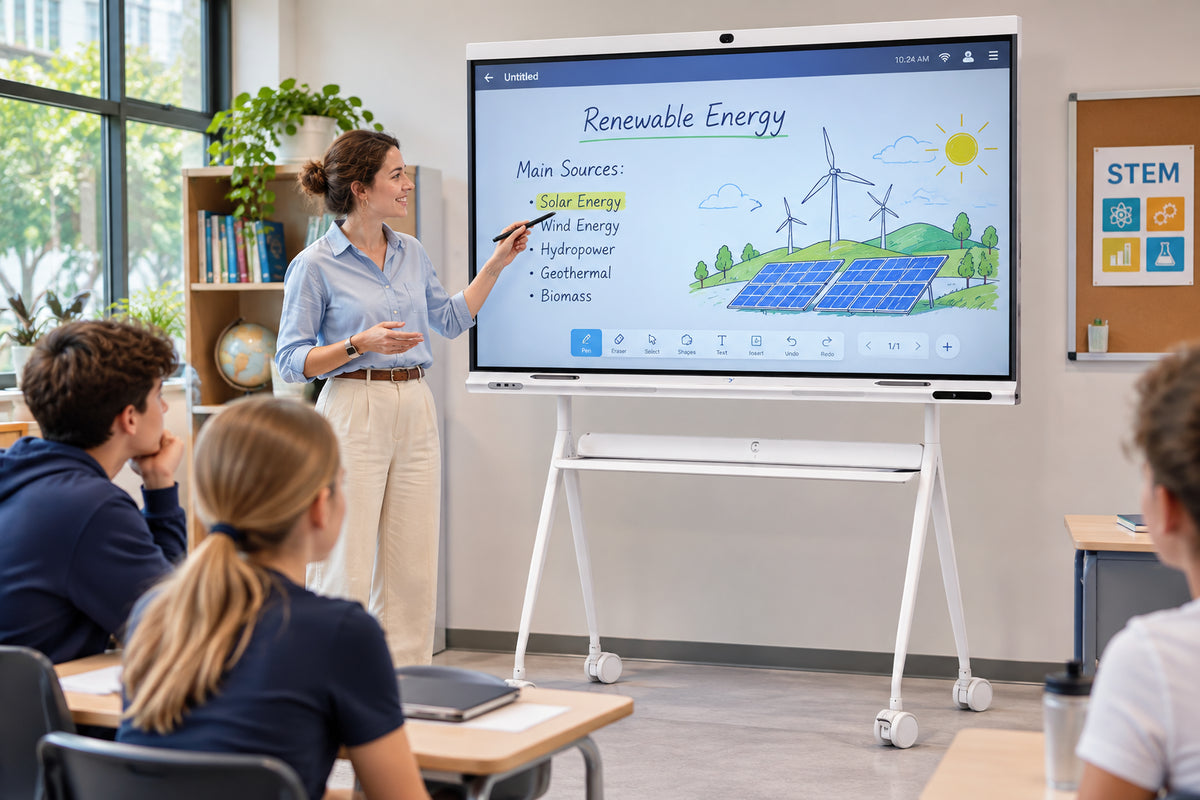
The Android environment gives the board a place to run its whiteboard and supported applications. For a facilitator building a process diagram or a teacher developing an explanation, that can keep the activity at the screen.
TIBURN's published 65-inch operation manual shows the S-write whiteboard, an annotation tool, a file manager, and input-source controls. Those tools provide a concrete starting point for a demonstration. Check the delivered software version and account requirements for any additional apps you intend to use.
Choose Ultra when a Windows environment belongs in the room
The Ultra is worth evaluating when the room needs Windows applications available on its own computer. Examples include working through an Office document, accessing an organization-approved Windows tool, or running a training application that your IT team supports on Windows.
Windows 11 Pro provides the operating environment; application licenses, installation rights, and performance requirements still need separate attention. The included Mini PC specifications do not establish that a large CAD model, complex simulation, or every desktop application will run acceptably. Test the files and software that make the upgrade useful to you.
If your presenters always bring a configured laptop, compare that existing workflow with using the supplied Mini PC. The useful upgrade is the one your team will actually use.
How the 65-inch Ultra Handles Writing and Annotation
The touch display supports two related activities: building a whiteboard page and marking material already on the screen. They serve different purposes, so demonstrate both.
Develop an explanation in S-write
The INSPUR Board 65 operation manual shows S-write's menu for file handling and preferences, together with drawing tools and page navigation. The page-preview section explains how to open a preview from the page number and manage individual pages.
A practical workshop could start with a blank page for the problem, move to another page for alternatives, and return to the earlier page when the group needs context. Demonstrate the save command and reopen the saved work on the proposed unit. If you need a particular export format or delivery to another device, include that requirement in the demonstration.
Mark a displayed document with the annotation tool
The manual's annotation section describes opening Annotation from the sidebar. It documents an ordinary pen, a writable/erasable pen mode, three handwriting-thickness levels, six colors, and erasing controls. These provide useful ways to distinguish a question, a proposed change, and an agreed point during a review.
The Ultra's product description also states that Android annotation can be used over content displayed from Windows. For example, a presenter could show a Windows document and mark the point the group is discussing. Confirm that workflow on the selected configuration, including how the marks are captured.
Writing over a slide or spreadsheet does not automatically edit the original PowerPoint or Excel file. Use the Windows application to make file changes when that is the intended outcome, and use annotation to explain or review the displayed material.
Interpret touch and response figures correctly
The Ultra page lists 20-point touch. That describes touch-input capacity, not a guarantee that 20 people can comfortably write at once or independently edit in every application.
Its specification block also labels an 8ms figure as G-G response time, a display pixel-transition measure. It should not be treated as a verified 8ms end-to-end pen latency. The useful writing test is to draw, erase, select, and navigate on the actual board.
Present from the Mini PC, a Laptop, or a Shared Device
The 65-inch Ultra supports several ways to bring material into a session. Separating those paths makes setup easier to understand.
Work directly in the supplied Windows environment
For a recurring training session, the Mini PC can hold the approved Windows application and local working files. Have IT complete installation and account setup before the room is handed over, then open a representative file and check touch input in the application.
The documented 65-inch source-switching procedure uses the remote's Signal Source key, followed by selecting a source and pressing OK. The manual also describes a sidebar route through the source controls. It explicitly notes that available sources depend on configuration. Ask TIBURN to identify the supplied Mini PC's actual source label and connection on the Ultra you order; a generic manual screenshot does not prove a particular OPS connection.
Connect a guest laptop
The Ultra listing supports wired presentation through HDMI. That gives visiting presenters another route to the screen without requiring their files to be installed on the room computer.
If the presenter also needs to control the laptop from the touchscreen, verify the touch-data connection, operating-system support, and application behavior. A visible HDMI picture alone does not establish touch control of the source computer.
Share wirelessly
TIBURN lists wireless screen sharing and states that up to four users can cast simultaneously on the Ultra. Treat that as a manufacturer-stated sharing capability to demonstrate with your intended devices. Confirm the software, network access, supported layouts, and number of sources actually visible together.
Bring a company-managed laptop and a typical guest device to the demonstration. Their permissions and network access may differ. Also test what happens when one presenter leaves and another starts sharing.
The Android and Windows environments should be evaluated as separate workspaces. Do not assume that files automatically synchronize between them, or that both operating systems run side by side on the display, without a demonstrated setup.
Camera, Microphone, and Video Meetings on the 65-inch Ultra
The current Ultra page lists camera and microphone support, along with built-in speakers. That makes video meetings part of the product's intended use, but the complete call depends on the platform and computing environment.
Choose where the meeting will run: the supplied Windows Mini PC, a supported Android app or browser, or a connected laptop. Then check that the selected environment can access the intended camera, microphone, and audio output.
For a useful acceptance test, invite a remote colleague, speak from normal seats, and share the actual document you plan to discuss. Have the remote participant confirm both voice clarity and whether the board's content reaches the call. Annotation visible locally is useful only if the intended remote-sharing workflow carries it to the other participants.
App availability, account permissions, and licenses must match your organization. The 4K screen specification also does not guarantee a 4K video call. If the room depends on a specific conferencing platform, request confirmation for that exact configuration before ordering.
Ports, Mounting, and Room Fit: Details to Check Before Delivery
The Ultra page lists three HDMI 2.0 ports, two USB-C ports, five USB 3.0 ports, one USB 2.0 port, and an HDMI output. It also names Touch USB and USB-B connections. Confirm the physical port map and each port's role on the supplied hardware; those touch labels should not be counted as additional independent connectors without clarification.
This matters when planning a room. A visitor's HDMI presentation, a touch-data connection, and USB accessories need clear cable paths. For USB-C, confirm the required video, touch, and charging functions individually, including any supported power-delivery rating. The connector's shape does not establish all of those functions.
For installation, the website lists a 400 × 400mm VESA mounting pattern and wall-mount support. The Ultra package description includes wall-mounting equipment. Mobile-stand references elsewhere on the page are inconsistent, so have stand inclusion and the specific stand model written into the quote if mobility is required.
A 65-inch diagonal is useful only when people can read the material and reach the writing area comfortably. Check your real document from the furthest seat, look for reflections, and leave appropriate access around the installation. Use the current device dimensions, weight, mount rating, and installation instructions when planning the work.
What Does the 65-inch Ultra Cost?
On November 6, 2026, TIBURN's U.S. storefront displayed the Ultra at $3,399 USD, compared with $2,999 USD for the Android-only Inspur Board 65-inch. That was a $400 difference between the displayed product prices on that date, not a complete installed-room quote or a promise of future pricing.
For the Ultra, ask the quote to identify the Mini PC, wall mount, pens, remote, cables, and any mobile stand. Include installation, delivery requirements, software licenses, and IT setup where needed. A clear bill of materials lets you assess the Windows upgrade without overlooking required items.
The current page states a 12-month hardware warranty. Review its terms and the separate return policy for your order; the warranty should not be assumed to provide an unconditional 12-month refund. Schools and businesses can also ask TIBURN about eligible PO or invoice arrangements before checkout.
A Focused Demo for the Inspur Board 65-inch Ultra
Bring one real work file and ask the demonstrator to complete this sequence:
- Identify both environments. Show Android 13 and the supplied Windows system; confirm the Mini PC specifications and activation status.
- Open your Windows application. Load the representative document or training file and check the operations your team needs.
- Switch sources. Demonstrate the actual source labels, connections, and steps used on this configuration.
- Write and annotate. Create a S-write page, mark displayed content, and show how the work is saved and reopened.
- Connect another device. Test a guest laptop through the intended wired or wireless method, including touch control if required.
- Run the meeting platform. Check camera and microphone selection, remote audio, and content sharing with an off-site participant.
This sequence puts the Ultra's main promise to a practical test: whether Android whiteboarding and the Windows computer support the work your room needs to handle.
Frequently Asked Questions
Does every TIBURN 65-inch board include Windows?
No. The base Inspur Board 65-inch is listed with Android 13. The Ultra is described with Android 13 and a supplied Windows 11 Pro Mini PC. Confirm the exact product and package on your quote.
What computer is included with the 65-inch Ultra?
The current Ultra product description lists an Intel i5-1250PE Mini PC with 16GB DDR4, a 256GB SSD, and Windows 11 Pro. Confirm the delivered configuration, activation, and physical connection before ordering.
Are the 8GB/128GB and 16GB/256GB specifications interchangeable?
No. The 16GB/256GB figures appear in the Mini PC description. The general 8GB/128GB block does not clearly identify its operating environment. Request separate Android and Windows specifications rather than merging those numbers.
Can I annotate over Windows content?
TIBURN's Ultra description states that Android annotation can mark content displayed from Windows. Demonstrate the intended application and capture method. An annotation overlay is different from editing the original file.
Can four people share screens at the same time?
The Ultra product description states support for up to four casting users. Confirm device compatibility, the sharing app, network requirements, and simultaneous display layouts with the proposed system.
Does the Ultra include a mobile stand?
Wall mounting is listed, but mobile-stand references vary across the page. Have TIBURN confirm the included accessories and quote a compatible stand explicitly if you need one.
See Whether the 65-inch Ultra Fits Your Work
The TIBURN Inspur Board 65-inch Ultra brings a 4K touch surface, Android whiteboarding, and a Windows Mini PC into one proposed room configuration. Its value is clearest when your team needs both direct visual explanation and a supported Windows application available at the board.
Explore the 65-inch Ultra or contact TIBURN for a configuration-specific quote. Include your applications, representative file types, room layout, installation preference, quantity, delivery ZIP code, and required date. Ask for the complete package and a demonstration of the workflow before choosing your 65-inch interactive whiteboard.

Join the conversation