
A small meeting room may host a slide presentation in the morning, a website review after lunch, and a working discussion around a document later that day. Those activities do not all suit the same screen orientation.
The Tiburn Flip Hub S2 is a 55-inch smart board built around a rotating touchscreen and matching mobile stand. Its usefulness comes from choosing the orientation, input method, and room position that fit the material being discussed.
This guide examines that specific product: what its documented features support, how to use them in everyday office work, and which details a buyer should confirm for the quoted configuration.

What Makes the Tiburn 55-Inch Smart Board Different?
The Tiburn Flip Hub 55-inch S2 combines a 4K touchscreen, portrait and landscape positioning, whiteboarding, wired and wireless sharing, and a wheeled stand. Its current product page lists Android 13 and camera-and-microphone hardware.
The distinguishing feature is the rotating workspace. A rotating interactive display lets the team change the physical screen orientation for a tall document, then adjust the application or content to suit it.
The buying decision therefore involves more than screen size. Check the screen's movement, the stand's footprint, and your applications in both orientations. Treat this as one configured product, not a guarantee that every software workflow behaves identically.
A 55-Inch 4K Touchscreen Built for Everyday Collaboration
The 55-inch format provides a shared surface for colleagues gathered around a compact room. It can show a slide while leaving space for annotations, or display a document that several people need to examine together.
A 4K interactive touchscreen is useful when content contains small distinctions: spreadsheet labels, fine lines in a diagram, or type and spacing in a design mockup. Adequate source resolution and suitable scaling help retain those details as people inspect the material.
However, more pixels do not make tiny text readable from every seat. Open a representative file and check the farthest viewing position. Increase text size or zoom where necessary rather than assuming the panel eliminates viewing-distance constraints.
Unlike a non-touch office monitor, this surface also provides an input point. In supported software, the presenter can select, write, or mark the relevant area directly. Confirm the touch connection separately when using an external computer.

Landscape vs Portrait: How the Rotating Screen Changes Your Workflow
Landscape Mode for Meetings and Presentations
Landscape suits wide slides, video-call layouts, spreadsheets with several columns, and brainstorming that develops across a horizontal canvas. Start with the board positioned so participants can see it and the presenter can approach its controls.
For a PowerPoint review, share the presentation, use an appropriate slide layout, and test how annotations are handled. For a spreadsheet, decide which columns matter before adjusting zoom; showing every column at once may make the information unusable.
In video meetings, test the balance between participant tiles and shared content. The display's orientation creates space, but the meeting application determines how that space is divided.
Portrait Mode for Documents and Vertical Content
A vertical interactive display can make better use of the screen for portrait pages, tall presentation layouts, mobile app mockups, and social media creative. More vertical room may allow reviewers to follow a page's sequence with less scrolling, depending on scaling.
For document review, rotate the panel using the supplied instructions, check the displayed orientation, and open the relevant page. Set a readable zoom before discussing a clause or marking a correction. Portrait mode does not guarantee that an entire long document fits at readable size.
For website or mobile-content reviews, set the browser viewport or prototype to the intended device format. A portrait screen alone does not reproduce a phone's resolution, browser behavior, or touch interface.
Tiburn's rotation illustration describes gravity-sensing orientation adjustment. Verify its behavior with your actual apps and connected devices; do not assume every mirrored image or application automatically changes layout. The useful workflow is to change orientation, check the content, and continue the review—not simply turn the hardware.
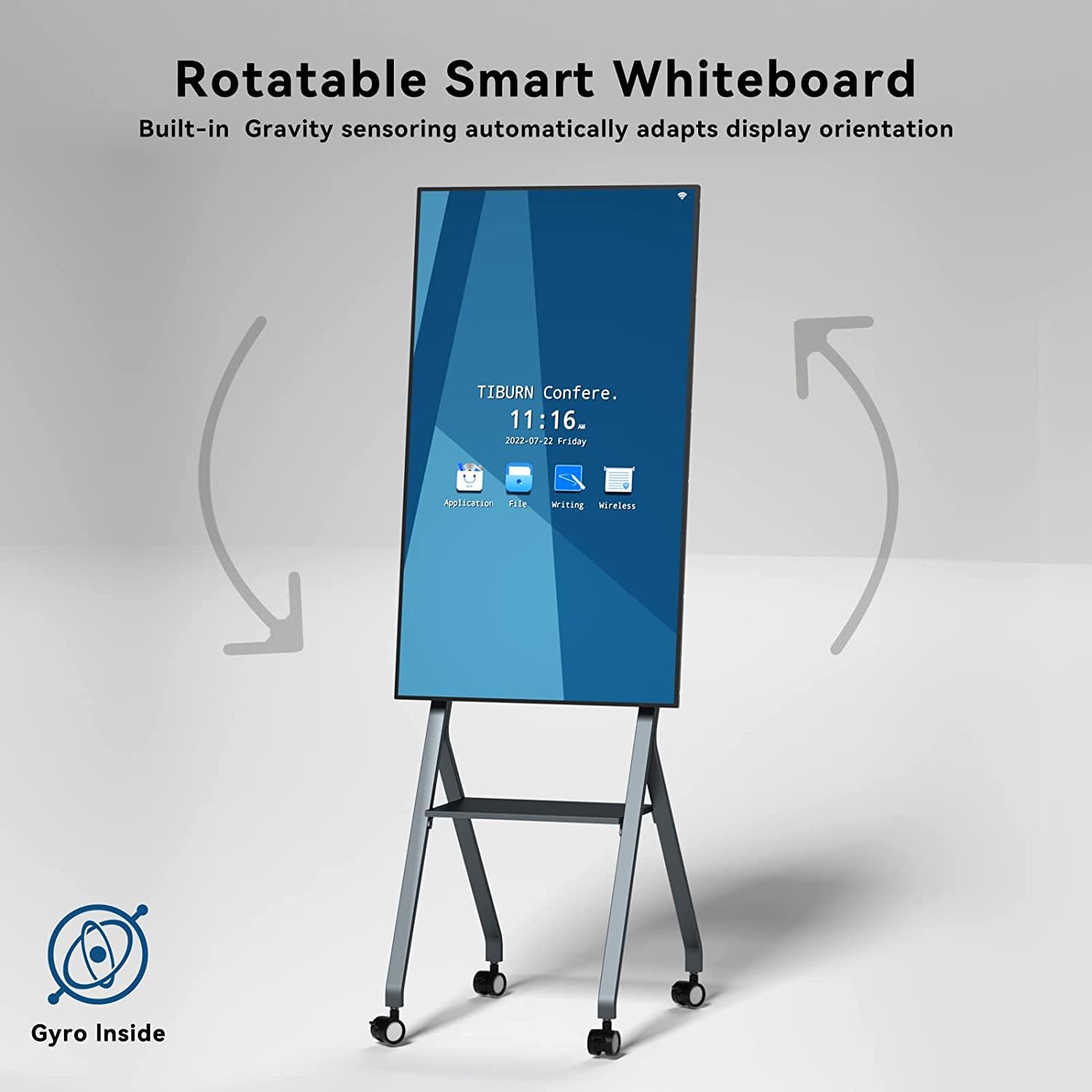
Flexible Workspace Setup With a Mobile Stand
The matching stand shown in the product images has wheels and supports the rotating display. A mobile smart board can serve a project area, then be repositioned for a nearby workshop when access and room layout permit.
Tiburn's stand illustration identifies a bearing-based rotation mechanism with spring and damping components. These describe the intended flipping structure; they do not establish an adjustable-height range or unrestricted tilt.
Evaluate ergonomics through actual use. Can the presenter comfortably reach the controls in both orientations? Is there enough clearance for rotation? Does the base fit without obstructing chairs or walkways?
A smart board on wheels still needs a suitable route and power arrangement. Follow the handling instructions and manage connected cables before moving it. “Portable interactive whiteboard” should mean repositionable within an appropriate workspace, not battery-powered, lightweight, or easy to carry. Confirm dimensions, weight, caster operation, and any height or tilt adjustment before ordering.
Capacitive Touch for Writing, Reviewing, and Brainstorming
Tiburn's 55-inch touch illustration identifies a capacitive screen. The practical difference from a non-touch monitor is that the display itself accepts interaction rather than relying entirely on a separate mouse or keyboard.
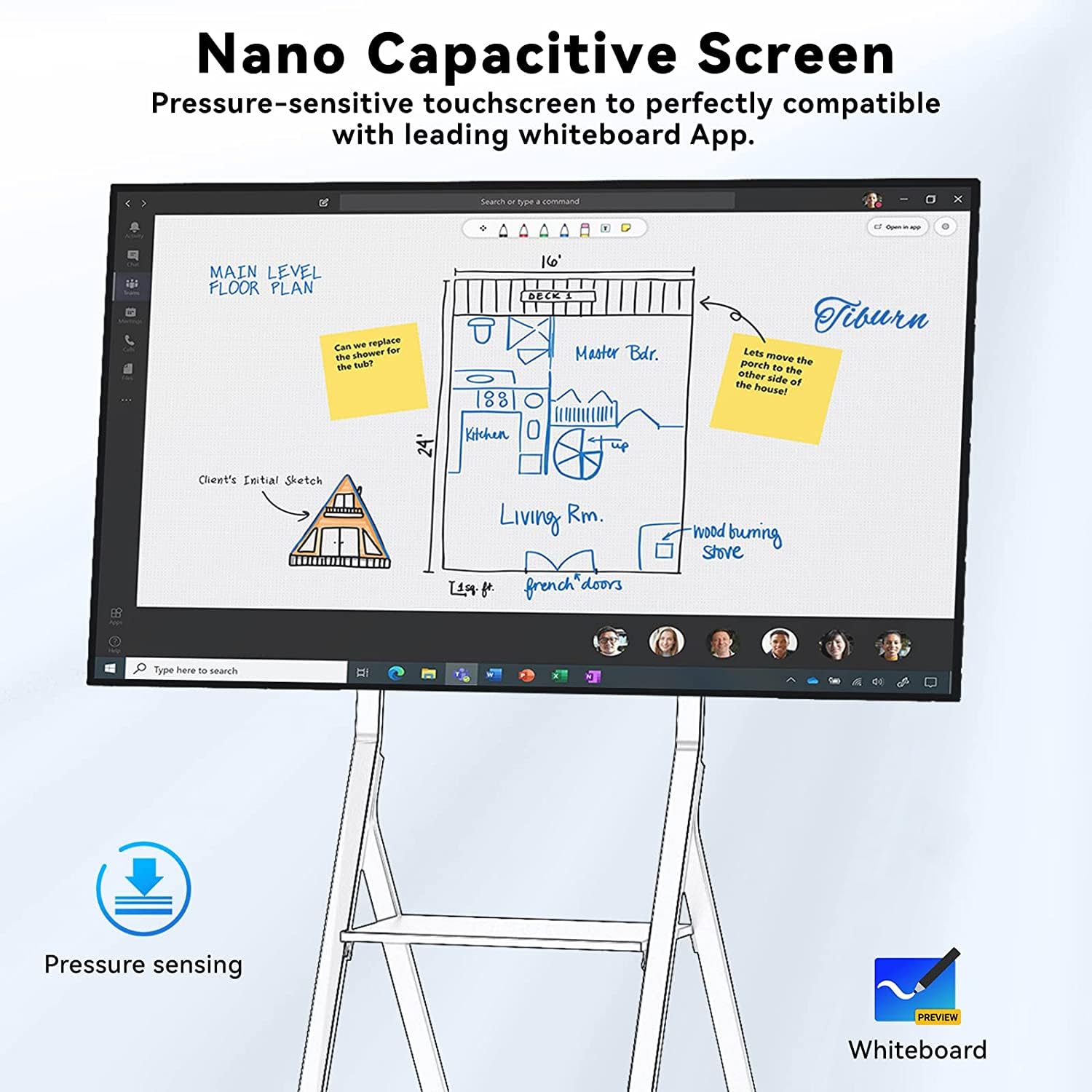
For a design discussion, open the approved material in software that supports annotation. Mark the specific edge, label, or section under review, then ask the team to confirm the change. For project planning, sketch a short sequence and mark the handoff that needs an owner.
In brainstorming, use the available whiteboard tools to group contributions and revise relationships as the discussion develops. The purpose of digital annotation is to make the point of disagreement visible and specific.
Test the proposed writing tool and intended application. Touch hardware does not guarantee identical pen behavior in every program. Before relying on saved notes, verify the application's export method, file format, and destination; no particular saving workflow should be assumed from the touchscreen alone.
Wireless Screen Sharing for Multi-Device Collaboration
The S2 listing confirms wired and wireless sharing. In a multi-department meeting, an organizer can establish the approved sharing method, let one presenter display a proposal, and then switch to another person's supporting material.
That process is useful when a sales presentation, product drawing, and browser-based plan are on different computers. Wireless sharing can reduce repeated HDMI changes, provided each device can connect through the required network and software.
Test presenter handoff, shared sound, and the visibility of annotations. Keep a supported wired alternative available. The published connection list includes HDMI and USB interfaces, but confirm which ports carry video, touch, camera access, or charging in your setup.
Tiburn's model-specific description lists up to nine users casting at the same time and names Windows, macOS, iOS, and Android sources. This does not establish a nine-window layout or universal protocol support. Demonstrate the simultaneous display arrangement, presenter controls, and compatibility with your device versions before purchase.
Video Conferencing: Included Hardware and Optional Accessories
The current S2 product page lists an HQ Eyes S2 camera and microphone with the display; it does not present the camera simply as an optional extra. Check that the supplier's quote names the same package before ordering additional hardware.
The separate HQ Eyes S2 product specification documents 4K camera capability. That does not guarantee a 4K call: the meeting platform, network, settings, and connection method affect the delivered stream.
For a remote customer demonstration, begin in landscape mode, open the approved meeting application, and select the intended camera, microphone, and speakers. Check the remote participant's view of the presenter and share digital content through the meeting workflow.
Test speech from ordinary seats and the presenter's position beside the board. Any additional camera, microphone, or host computer should be specified as an extra only where the required workflow justifies it. App compatibility is not an assertion of official conferencing-platform certification.
Android 13 and Your Everyday Software Workflow
The model-specific product page and feature image identify Android 13. General Tiburn materials mentioning a different Android release should not be treated as the specification of this 55-inch unit.
For daily use, start the display, select the intended onboard app or sharing input, and open the required content. Test document viewing, browser presentation, whiteboarding, and switching between those activities with the accounts your organization permits.
The onboard environment and a connected laptop are different operating paths. Confirm app availability, sign-in requirements, orientation behavior, updates, and file access for each. A Windows icon in a product image does not prove that a Windows computer or license is included. Request a configuration list for any optional computing module.
Real-World Applications of the Tiburn 55-Inch Smart Board
Small Meeting Rooms
Use the S2 as a shared surface for close discussion and short presentations. Assess an interactive display for small meeting room use with the actual furniture layout, including clearance for the rotating panel.
Marketing and Creative Teams
Switch between landscape campaign presentations and portrait mobile layouts. Review spacing, reading order, and proposed changes at a controlled zoom rather than judging a design from an automatically stretched image.
Product Demonstrations
Show a broad overview in landscape, then rotate for a tall interface or document when useful. Test the demonstration sequence beforehand so input changes and app orientation do not interrupt the explanation.
Training and Workshops
Present instructions, move into whiteboard discussion, and review the resulting notes. Check that participants can read both prepared content and handwriting, and confirm how materials will be retained afterward.
Remote Collaboration
Use the camera-and-audio configuration for discussion and a tested digital sharing method for the working material. Local touch interaction does not automatically provide remote editing; that depends on the chosen software and permissions.
55-Inch Rotating Smart Board vs Traditional Fixed Display
Here, a traditional fixed display means a non-touch screen installed in one orientation. Other display configurations may offer additional capabilities.
| Buying question | Tiburn Flip Hub 55-inch S2 | Fixed non-touch display |
|---|---|---|
| Orientation | Rotating panel supports landscape and portrait workflows | Orientation depends on the installation; changing it may require remounting |
| Input | Touch surface for supported apps and whiteboarding | Typically controlled through a connected computer or other input device |
| Sharing | Wired and wireless sharing listed; verify the device workflow | Depends on built-in functions or connected sharing equipment |
| Room placement | Matching wheeled stand supports repositioning | Location follows the chosen fixed installation |
| Typical review task | Rotate, inspect, and annotate suitable working content | Present content; add interaction through separate equipment where needed |
| Main purchasing check | Validate movement, app behavior, and package contents | Validate mounting, viewing position, and required external equipment |
Who Should Choose a 55-Inch Rotating Smart Board?
Consider this model when a team regularly moves between wide presentations and tall documents or mobile content. It is also relevant when one touchscreen whiteboard for office use needs to serve several nearby work areas.
A buyer seeking a 55-inch interactive whiteboard should prioritize readable content, reachable controls, and workable room access. The S2 is less compelling when orientation never changes or its display area does not suit the viewing distance. Evaluate the work first, then the configuration.
What to Check Before Buying
- Confirm the model is Flip Hub 55-inch S2 and verify its shipping software version.
- Request chassis dimensions, stand footprint, total weight, and required rotation clearance.
- Demonstrate orientation changes with your apps, documents, and connected laptop.
- Confirm any height or tilt adjustment and the specified method for securing the stand.
- Test touch input, annotation, and the desired export workflow.
- Verify wireless protocols, device limits, simultaneous layouts, and wired fallback.
- Itemize the camera, microphone, stand, cables, software, and optional computing hardware.
- Review support responsibilities, warranty terms, and delivery requirements for your location.
Frequently Asked Questions
Does the 55-Inch Smart Board Rotate Between Landscape and Portrait?
Yes. The S2 listing and product images show both orientations. Follow the supplied operating instructions and verify application behavior after rotation. Do not assume unrestricted rotation or automatic reformatting of every shared source.
Is the Mobile Stand Included?
The current S2 listing identifies a matching mobile stand as included. Confirm the quoted package and request its dimensions and operating instructions. Height adjustment and tilt range need separate confirmation.
Does This Model Use Capacitive Touch?
The official product-gallery illustration identifies a capacitive screen. Test the proposed writing tool and intended applications rather than inferring precise latency, pressure behavior, or export features from that description.
Does Wireless Sharing Support Nine Devices at Once?
Tiburn lists support for up to nine users casting at the same time. Confirm the number of independently visible sources, layout choices, and device compatibility in a demonstration; a user limit alone does not establish a nine-window display.
Are the Camera and Microphone Optional?
The current product page lists camera-and-microphone hardware with the S2, including HQ Eyes S2 camera support. Confirm those inclusions on your quote. Additional peripherals and their compatibility should be specified separately.
Which Android Version Does the 55-Inch S2 Use?
The model-specific listing and feature image state Android 13. Confirm the version and application environment on the unit being supplied rather than applying specifications from other products.
Explore the Tiburn 55-Inch Rotating Smart Board
The S2 is worth evaluating when rotation, touch input, and movable placement match the way your team reviews content. A useful demonstration should cover both orientations and the exact sharing and software workflow you intend to use.
Ask Tiburn for the 55-inch S2 specifications, product catalog, and quote. Share your room layout, preferred applications, display-orientation needs, and quantity so the proposed package addresses your actual requirements.
مشاركة:
دليل أسعار السبورات التفاعلية لعام 2026: ما الذي يجب على الشركات دفعه؟