
65-Inch Interactive Whiteboard for Schools: Is It Big Enough?
Decide whether the TIBURN Inspur Board 65-inch Ultra fits your classrooms. Follow a worksheet lesson, compare Android and Windows configurations, review current prices, and use a practical school demonstration plan.
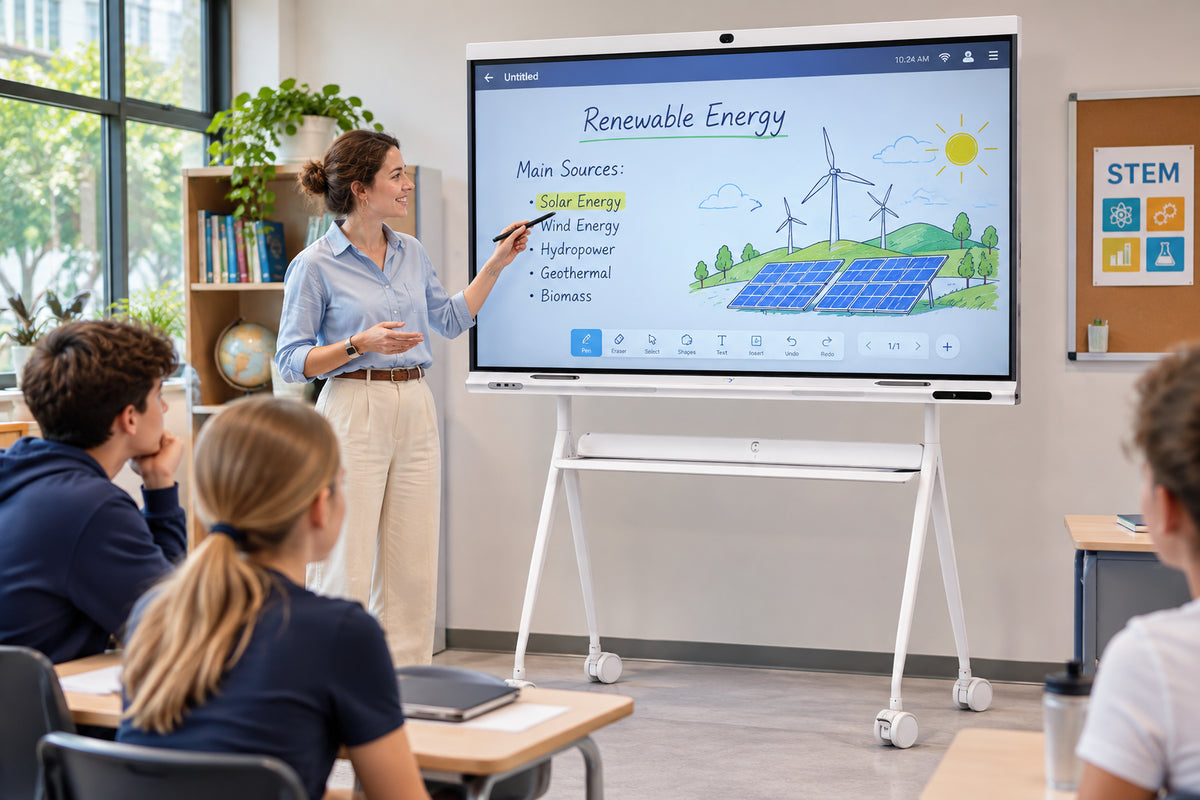
A 65-inch interactive whiteboard can be a useful teaching surface when students can read the material being taught and the teacher can work comfortably at the screen. That makes the decision specific to your classroom: a full-page worksheet, a short reading passage, and a large handwritten equation place different demands on the same display.
For schools considering the TIBURN Inspur Board 65-inch Ultra, this guide connects that size decision with the product itself. We look at how its Android whiteboard tools can support a lesson, when the supplied Windows Mini PC is useful, and what the current purchase price covers. The goal is to help your school choose a setup around the work teachers actually do.
Will a 65-Inch Interactive Whiteboard Fit Your Classroom?
Start with a real lesson file. On the TIBURN 65 Ultra, display the smallest text or symbol students genuinely need to read: a fraction denominator, a graph label, or the quotation they must analyze. Check it from the farthest occupied seat and from the seats toward each side.
The Ultra's 4K UHD panel provides image detail, but resolution cannot make physically small text readable at every distance. A clear letter can still be too small. If a teacher must continually enlarge and move around a worksheet, consider whether that interrupts the way the lesson is taught.
A useful classroom check includes three different views:
- One task at teaching size. Can students follow a single problem, paragraph, or diagram while the teacher adds notes?
- The wider context. When the teacher returns to the full worksheet, can students locate the section being discussed?
- Student participation. Can the students who will use the screen reach the writing area comfortably at the proposed installation height?
A 65-inch board deserves consideration for close discussion, small-group teaching, and rooms where the necessary content passes those checks. Whole-class use should be judged in the actual seating layout. A long room or lessons built around dense pages may call for a larger display.
For a school replacing a projector, recreate the usual projected lesson on the 65-inch screen. Compare its actual readable content area with the image teachers currently use. The projector's image size may be different from the board's 65-inch diagonal.
What the TIBURN 65 Ultra Brings to the School Day
The TIBURN Inspur Board 65-inch Ultra combines a 65-inch 4K touchscreen, Android 13, and a supplied Mini PC running Windows 11 Pro. The following details belong to the Ultra configuration.
| Documented feature | How a school can use it |
|---|---|
| 65-inch 4K UHD touchscreen | Display a lesson document and develop an explanation on a shared writing surface. |
| Android 13 environment | Use the board's Android whiteboard workflow and compatible applications. |
| Supplied Windows 11 Pro Mini PC | Run school-approved Windows applications on a computer assigned to the room. |
| Intel i5-1250PE, 16GB DDR4, 256GB SSD in the listed Mini PC | Give IT a specific configuration to evaluate against its required software and files. |
| Wired and wireless screen sharing | Bring teaching material from a compatible external device onto the display. |
The practical question for a school is where its teaching applications will run. A teacher who needs an approved Windows application has a reason to evaluate the Ultra's Mini PC. A teacher who already brings a configured laptop may use a different connection routine.
Windows provides the computing environment. Microsoft 365, specialist teaching software, account permissions, and any paid licenses need their own arrangements. Have IT install and open the actual applications your teachers need before standardizing a classroom configuration.
Follow a Lesson from the Worksheet to the Saved Explanation
A useful demonstration should show how a teacher handles a question, a correction, and a second approach. Here is an illustrative lesson workflow using S-write, the Android whiteboard shown in TIBURN's published INSPUR Board 65 operation manual.
The manual covers the 65 series; menus and available tools can vary by model and software version. Confirm the supplied S-write version on the Ultra during your demonstration.
Bring in the material students are already using
The manual documents importing images, videos, PDFs, and whiteboard files. For a reading lesson, prepare a PDF containing a short passage and its discussion question. Open it before class and check the section you intend to teach at a readable size.
During the discussion, a teacher can use different pen colors to distinguish a student's proposed answer from the supporting evidence in the passage. Underlining a phrase while explaining why it matters lets the class follow the reasoning as it develops.
This gives the shared page a specific purpose. Students can refer to the same words as the teacher adds an explanation, and the teacher can return to the original question when the discussion moves away from it.
Make a correction easy to follow
S-write provides adjustable pen color and thickness, an eraser with size options, and Undo and Redo controls. A teacher can use a finer stroke for notes beneath a question and a heavier stroke for a heading or the main line of a diagram.
In a mathematics example, write two fractions and ask which is larger. If a student compares the denominators alone, record that approach, then develop a common-denominator method where the class can inspect each step.
A small eraser correction keeps a nearby label intact. Undo reverses a recent mistaken action. The teacher can also deliberately leave an incorrect step visible and mark why it needs changing. That choice makes the misconception available for discussion.
Color works best when its purpose is clear. Pair it with words or symbols, such as an underline for evidence or a box around the agreed answer, so the explanation does not depend on color alone.
Compare two approaches without redrawing everything
The documented Select tool lets a teacher circle handwriting, copy it to the whiteboard clipboard, and paste it on the same whiteboard page or another page.
For the fractions discussion, keep one page for the first attempt and copy the relevant handwritten problem to another page for the revised method. Reusing the problem leaves more attention for the mathematical change. Page headings such as First Attempt and Common Denominator make the sequence easier to revisit.
Select must be active before circling handwriting. Drawing a circle with the ordinary pen simply adds ink. During a demonstration, ask the teacher who will use the board to perform the selection and paste, so the workflow becomes clear to them.
This is a whiteboard-page workflow. It does not establish a shared clipboard between Android, Windows, and other applications.
Keep a usable lesson record
Tapping the page number opens Page Preview in the documented interface. Before finishing, review the pages and add a short final explanation that a student could understand without hearing the entire discussion again.
The manual lists PDF, PNG, and IWB as save formats. A PDF can provide a readable lesson record; a PNG can provide an image for a recap. An IWB file is intended for compatible whiteboard software, so test reopening it where you plan to continue working.
Check the exported pages and their legibility before closing the session. Then distribute the material through your school's approved system. Saving a file does not establish automatic delivery to Google Classroom or another learning platform.
What Happens When a Teacher Uses a Laptop?
The Ultra supports wired and wireless sharing. Test the connection your teachers will actually use, with the school's laptop model, network, and account restrictions.
For a wired demonstration, check the picture and touch control separately. Do not assume that connecting HDMI video alone also returns touch input to the laptop. Ask TIBURN to show the required touch connection for that source and demonstrate opening a file, selecting an item, and writing in the intended application.
For wireless sharing, have a teacher connect from their normal classroom device. Check how the session starts, how it ends, and what another teacher must do to present next. An advertised connection capability is useful only when the school's network and devices support the routine.
The Ultra listing also describes Android Annotation over displayed Android or Windows content. A teacher could mark a point on a displayed document during an explanation. Those overlay marks do not automatically become edits to the original file. Save permanent document changes in the source application, and keep whiteboard work in its own saving workflow.
How Much Should a School Budget for the 65-Inch Board?
As checked on November 16, 2026, TIBURN lists these U.S. dollar prices:
| Configuration | Listed price | Main configuration difference |
|---|---|---|
| Inspur Board 65-inch | $2,999 | Android 13 configuration. |
| Inspur Board 65-inch Ultra | $3,399 | Android 13 plus the listed Windows 11 Pro Mini PC. |
The listed difference is $400 per board. Evaluate it against a specific need for the room's Windows computer. Both the device choice and its software arrangements should be clear in the school's quote.
The Ultra product description lists the board, Mini PC, wall-mounting equipment, remote, whiteboard pens, and cables. Installation labor is a separate planning item. Confirm the mobile stand in writing if you need one: the page's accessory list and package guidance do not give a consistent basis for treating it as included.
For an illustrative four-room purchase, four Ultras at the listed price total $13,596 for the listed packages. That calculation is not an installed-project quote. Add applicable tax, installation, site preparation, separately quoted stands, software, and training if those services are required and charged.
TIBURN's current storefront states a 12-month hardware warranty and describes PO or invoice support for eligible education and business customers. Confirm the required purchasing documents, warranty handling, receiving arrangements, and delivery date before placing a school order. Prices and package terms can change.
Run a Classroom Demonstration with a Clear Decision at the End
Bring one teacher's PDF, one Windows file if the school needs that environment, and a simple seating plan. Assign a teacher to operate the board and someone else to observe from the farthest occupied seat.
| Demonstration task | What the school should establish |
|---|---|
| Open the real worksheet or reading passage | Required text and symbols are readable from the intended seats. |
| Write, erase, and revise an explanation | The teacher can comfortably use the writing area and controls. |
| Select and copy handwriting to another page | The teacher can compare methods while preserving the original. |
| Connect the normal teaching device | The school's chosen picture, touch, or wireless workflow works as intended. |
| Save and reopen the result | The required pages are present, readable, and usable in the intended software. |
Use the result to make the decision. If teaching-sized content is readable and the lesson workflow works, the 65 Ultra can be a candidate for that room. If essential details remain too small or students cannot comfortably use the writing area, revisit screen size or installation height before ordering.
Frequently Asked Questions
Is a 65-inch interactive whiteboard large enough for every classroom?
No single screen size suits every seating layout or lesson. Evaluate the 65-inch board with the school's own content from its actual viewing positions. Headcount alone does not establish readability.
Does a school need the Ultra instead of the Android model?
Choose based on where the required applications will run. Ultra includes the listed Windows 11 Pro Mini PC. The base 65-inch model is an Android configuration; a teacher's existing laptop may cover some external-computer tasks.
Can a teacher use PDFs in the whiteboard?
TIBURN's published 65-series manual documents PDF import in S-write. Test a representative school file in the supplied version, including its layout and any material the teacher needs to annotate.
Can teachers save notes after class?
The manual lists PDF, PNG, and IWB saving. Verify export page selection and readability, and test reopening IWB in compatible software. Use the school's approved method to distribute the saved work.
Are Google Classroom and paid teaching apps included?
The configurations discussed here do not establish bundled Google Classroom access or paid application licenses. Have IT confirm the intended browser or app workflow, sign-in requirements, and licensing for the selected environment.
Is a mobile stand included in the $3,399 Ultra price?
Do not assume it is. The Ultra description lists wall-mounting equipment, while other accessory text also mentions a stand. Ask for a written package list and a stand quote if mobile use is required.
Plan a TIBURN 65-Inch Classroom Around Your Lessons
A useful classroom display lets teachers put a question, a student's reasoning, and a clear explanation in front of the group. The TIBURN 65 Ultra brings a shared touch surface and two computing environments to that task; your lesson files and classroom layout determine how well the setup fits.
Explore the TIBURN Inspur Board 65-inch Ultra and contact TIBURN with your school name, room layout, required applications, quantity, delivery ZIP code, and timeline. Request a written configuration and practice the lesson workflow before committing to a wider rollout.

Join the conversation